
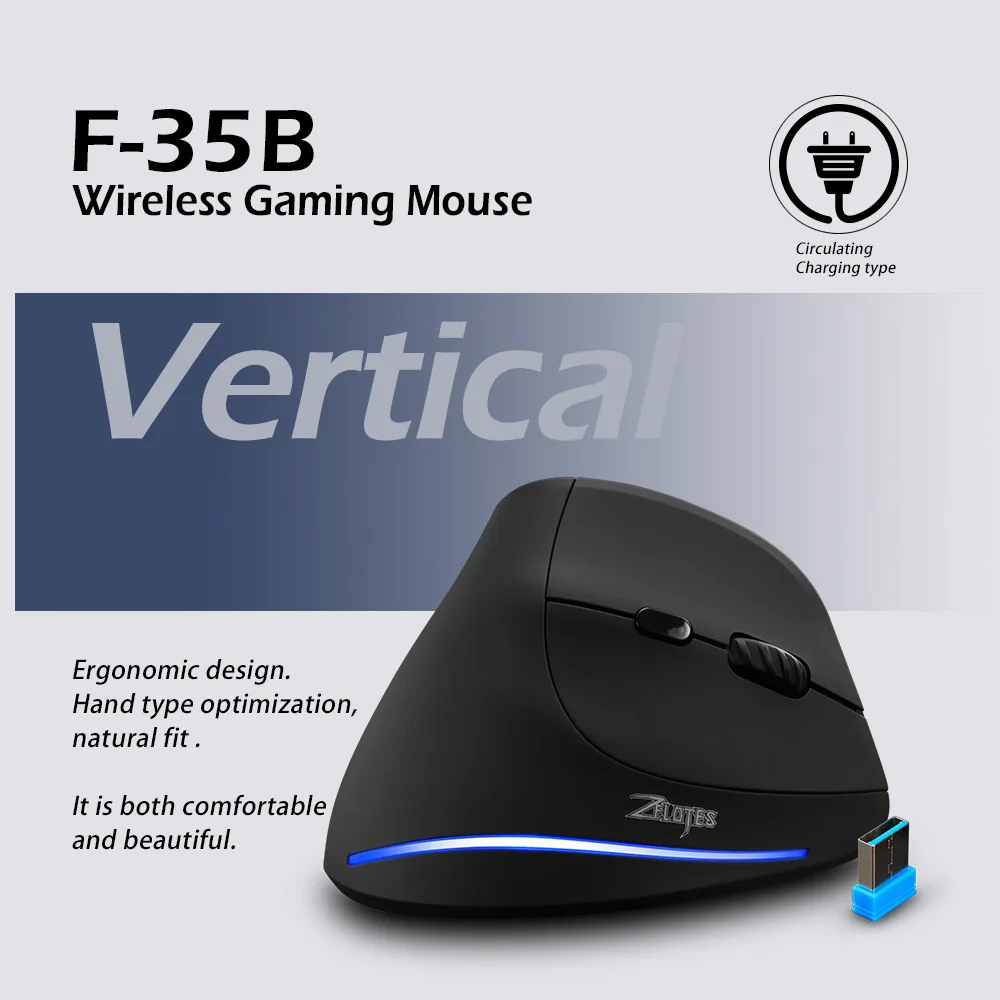
ZELOTES F35B 3-mode 2.4GHz Wireless MOUSE RGB Backlit Vertical Gaming Mouse Rechargeable PC/Laptop Compatible 7 Buttons
Three mode / Black / Adjustable
$15.99
Sale price
$15.99
Regular price
$0.00
Skip to product information

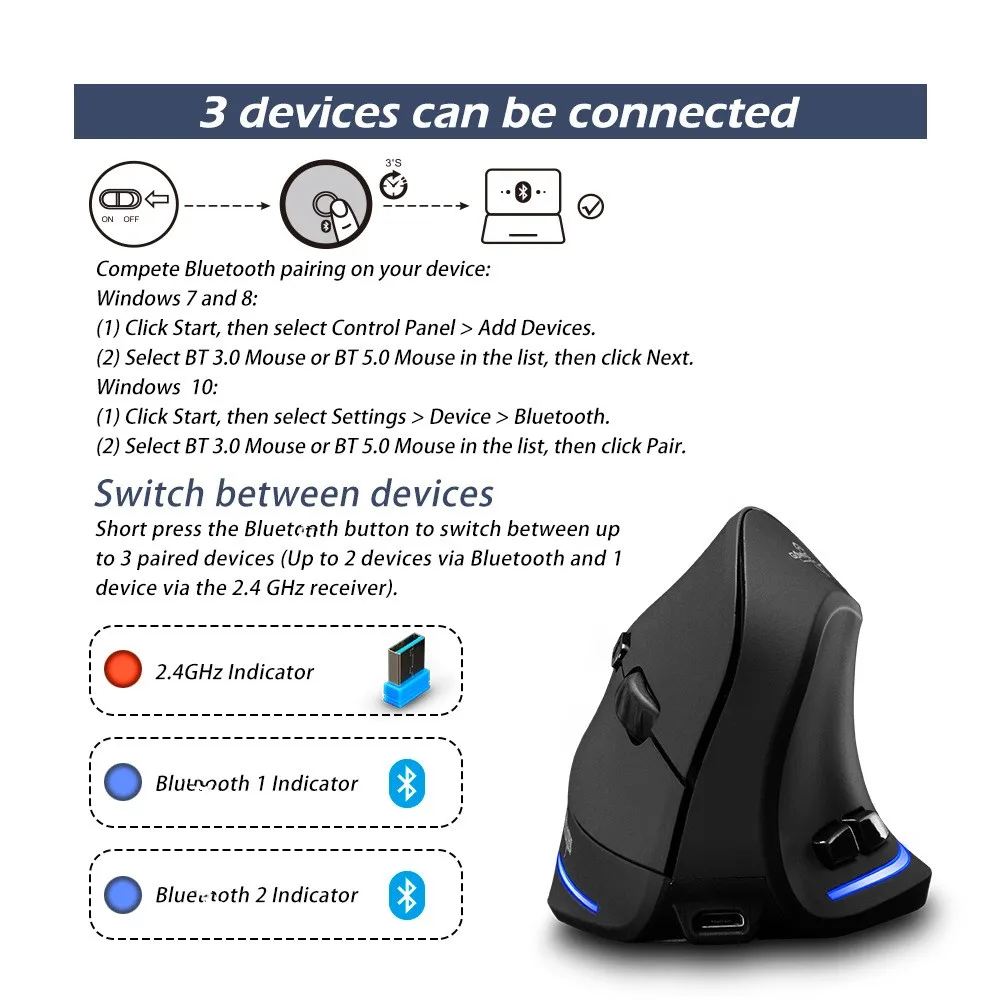
A. Pair Your First Device.



ZELOTES F35B 3-mode 2.4GHz Wireless MOUSE RGB Backlit Vertical Gaming Mouse Rechargeable PC/Laptop Compatible 7 Buttons
$15.99
Sale price
$15.99
Regular price
$0.00
SPECIFICATIONS
Buttons: 7 Bottons
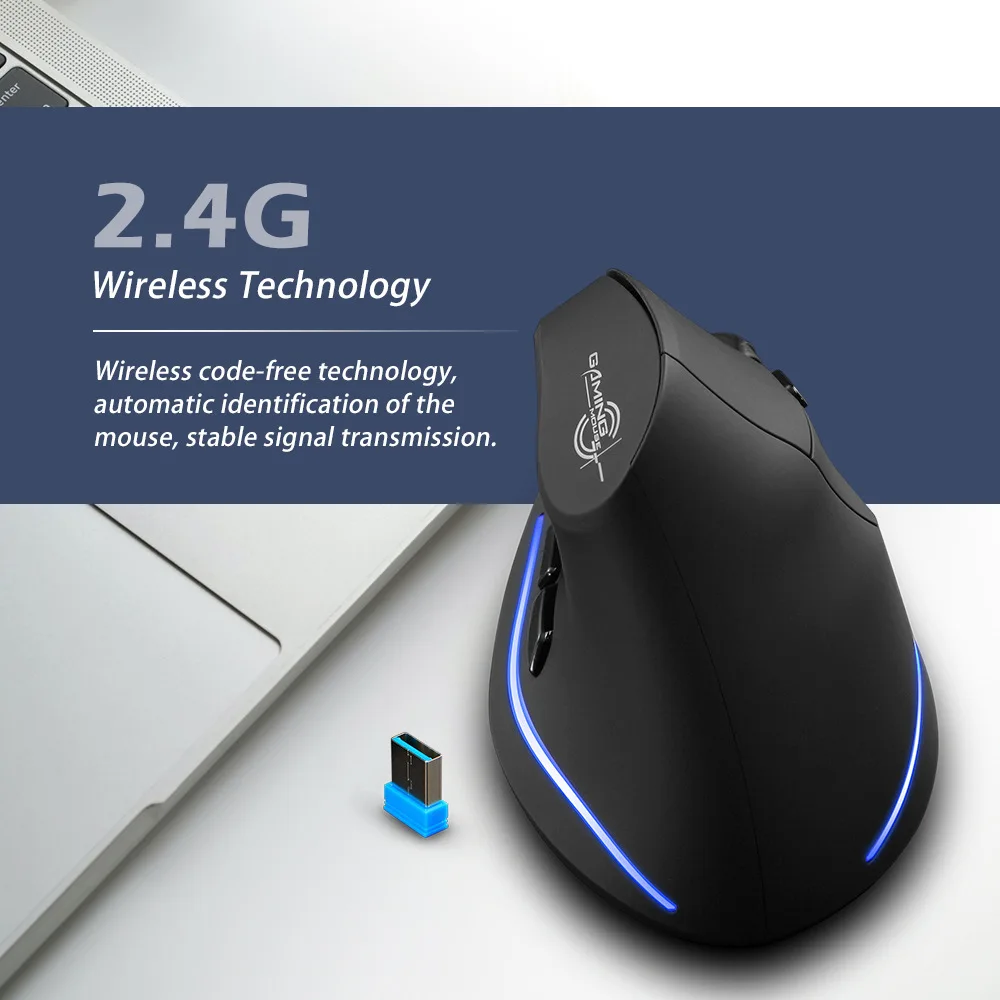
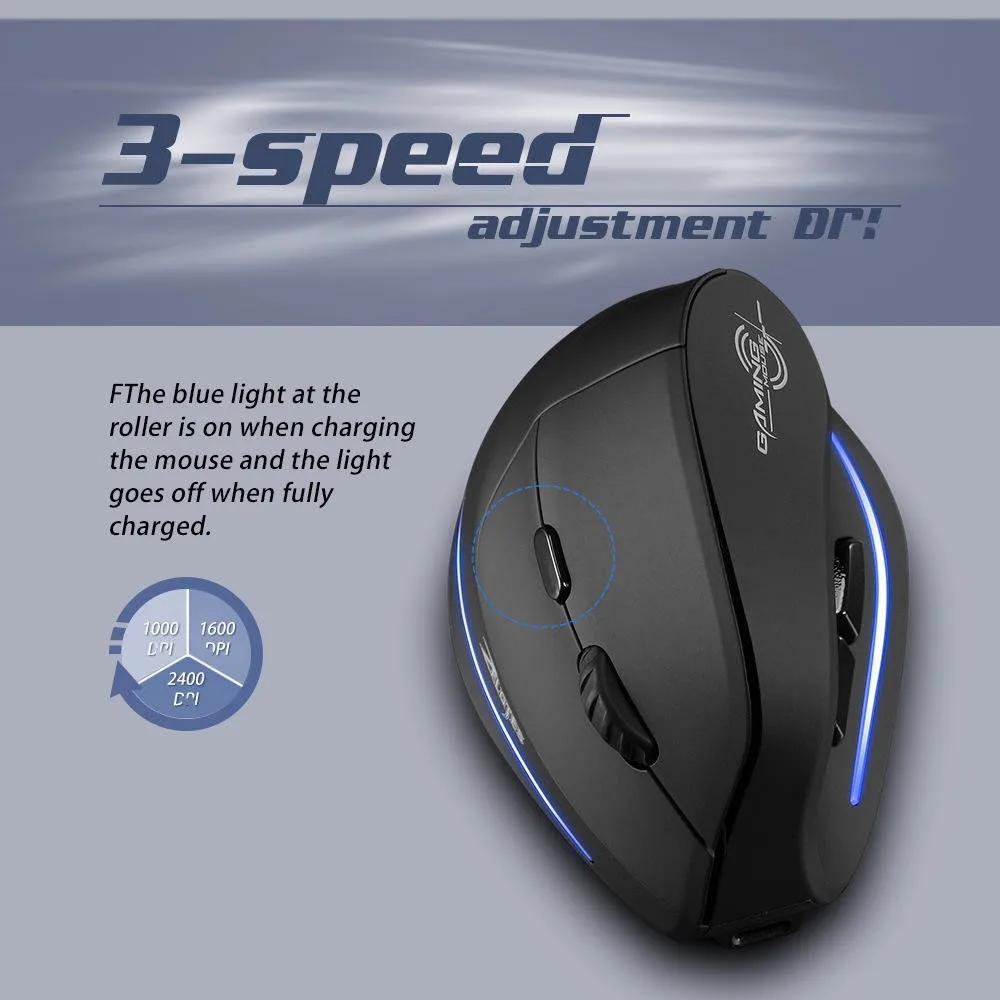
CPI: 1000/1600/2400
Feature: Three-mode wireless gaming mouse
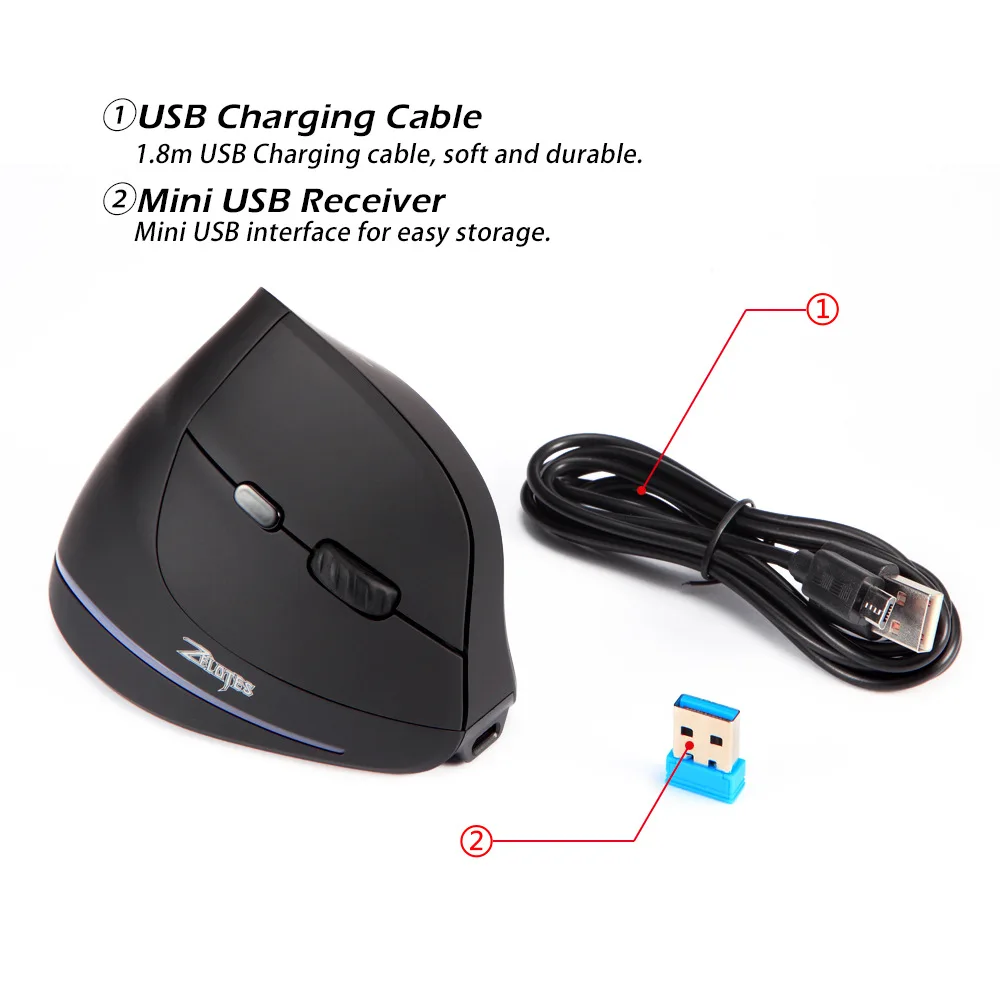
Length of charging cable: 1.8m
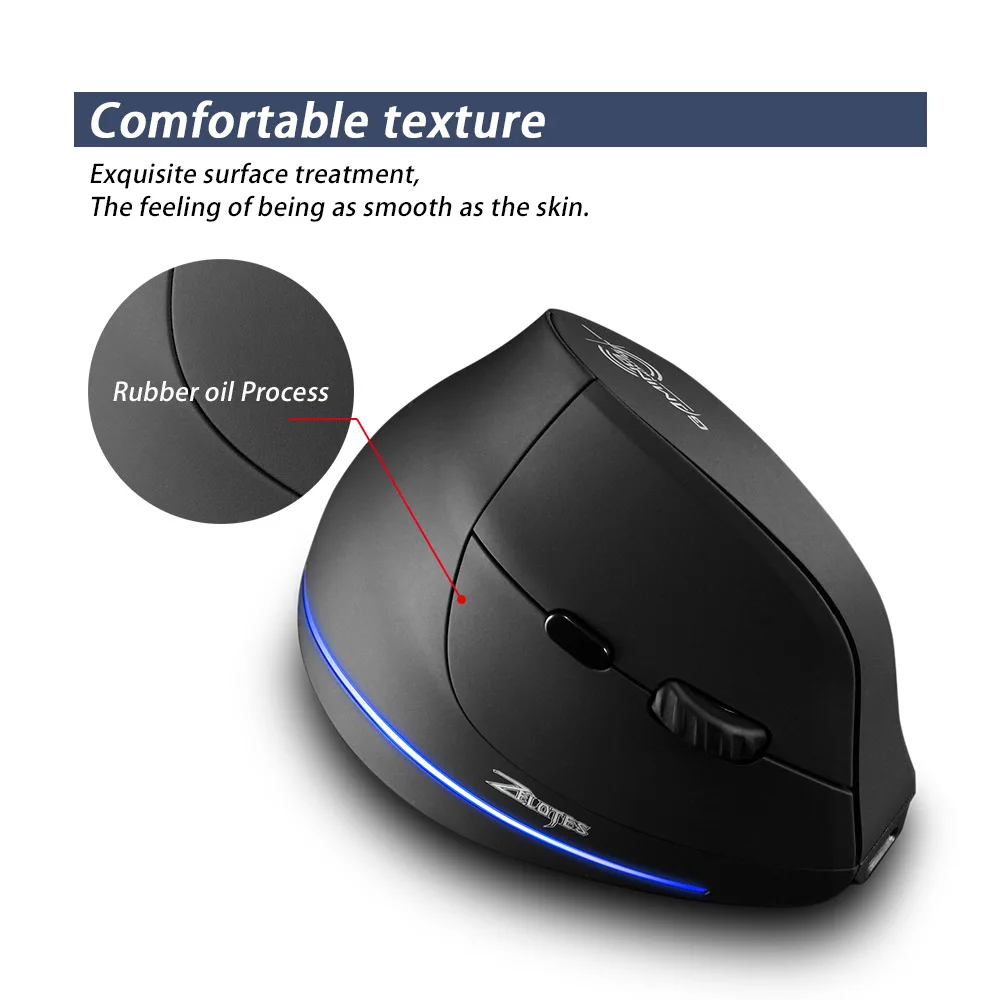
Material: ABS
Mouse Type: Gaming Mouse
Product Name: wireless Vertical mouse
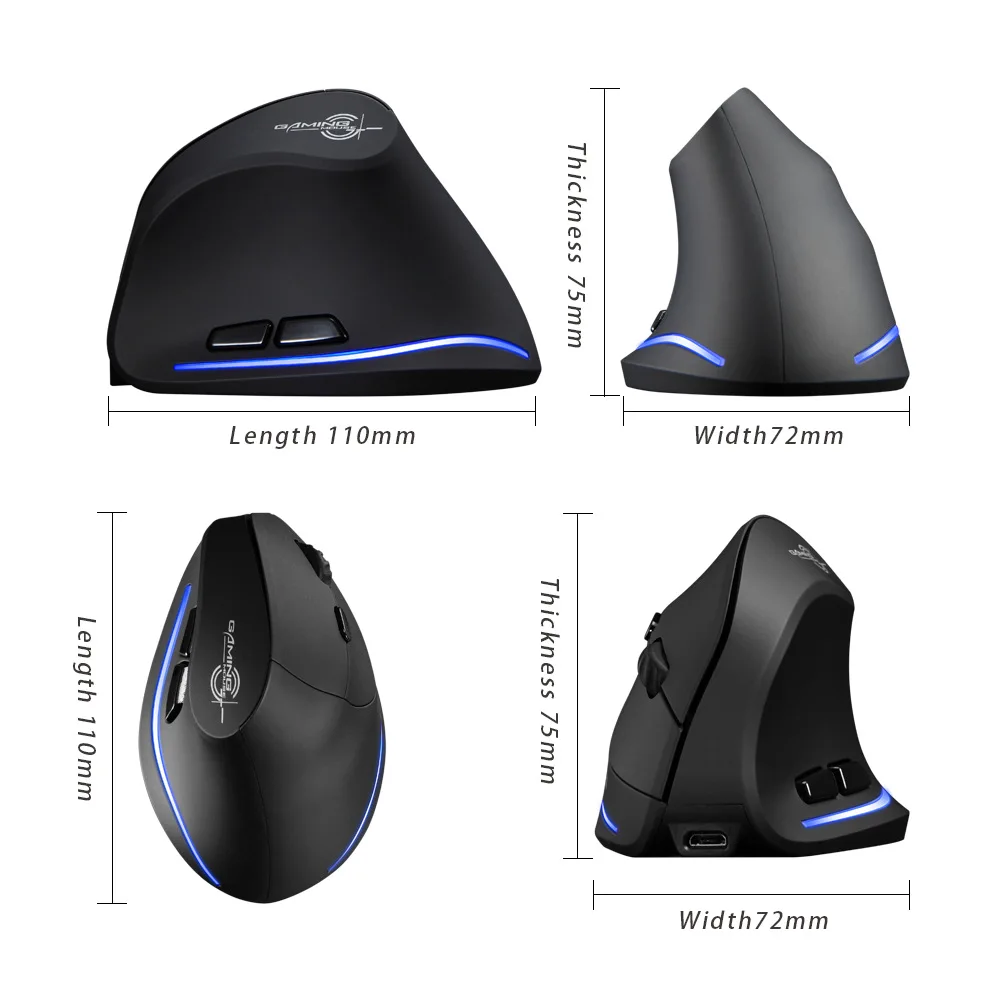
Size: 110*72*75 mm
Weight: 175g
application: Desktop,LAPTOP
backlit: RGB
ergonomics: Yes
hand orientation: Right
interface type: Usb
model number: F35B
number of buttons: 7
number of rollers: 1
operating distance: 10m
place of origin: Guangdong, China
power type: Rechargeable
products status: Stock
programmable: No
style: Gaming,Backlit
tracking method: Optical
Product Description
Component Function Description
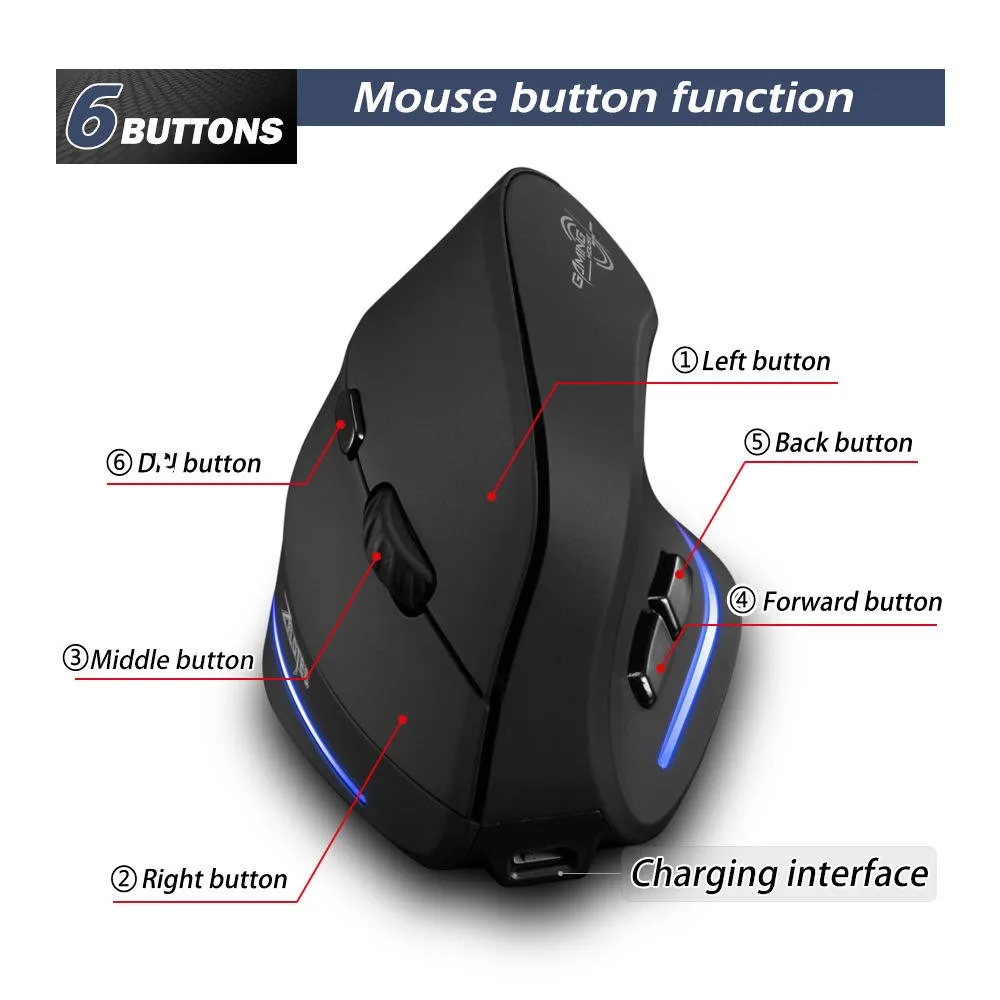
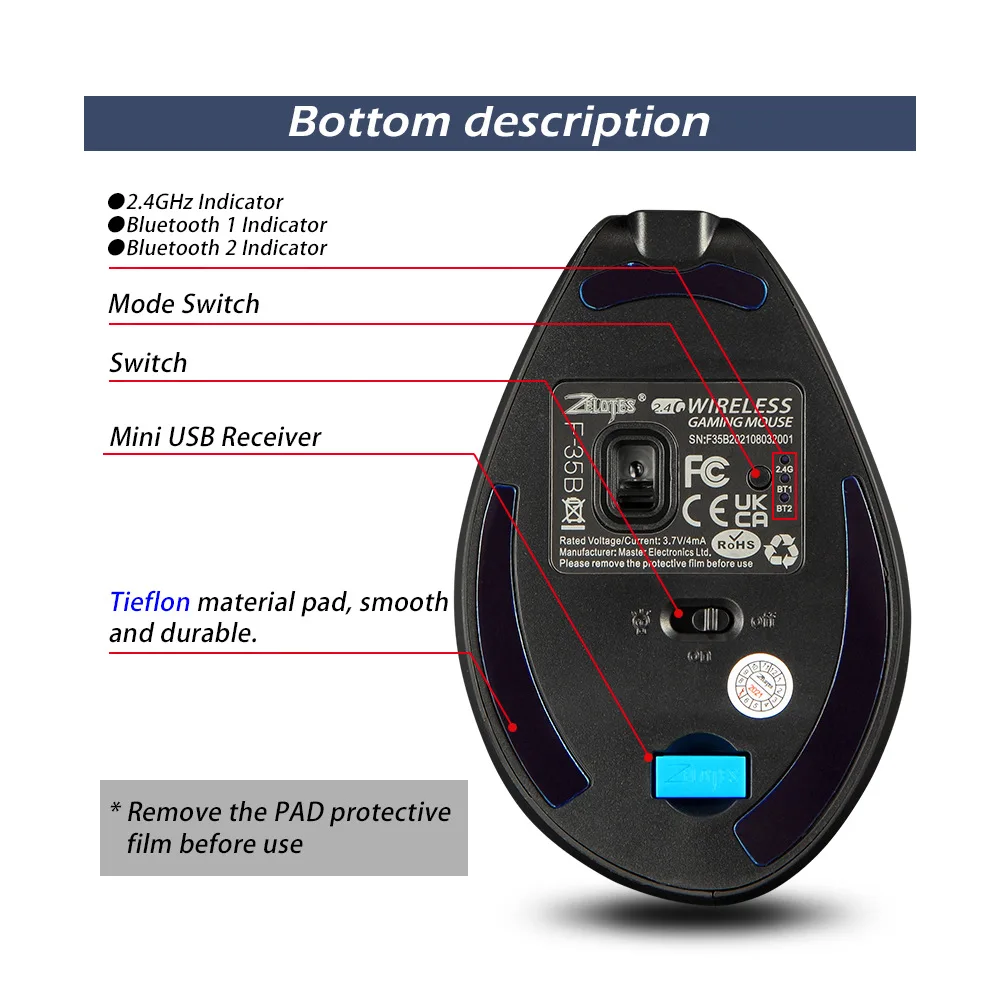
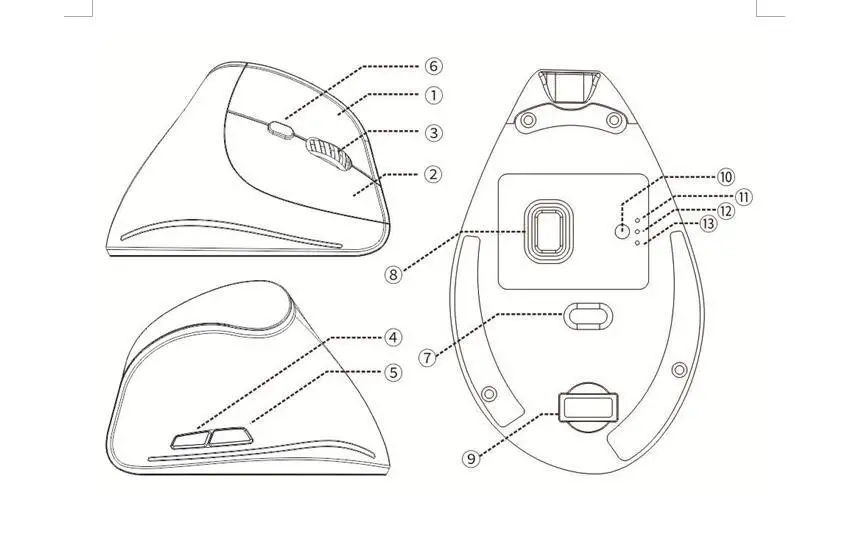
●①Left Click ②Right Click ③Scroll Click / Scroll Wheel ④Forward button⑤back⑥D)PI Switch⑦Power Switch⑧lens⑨receiver⑩Mode Switch
⑪2.4GHz Indicator⑫Bt1 Indicator⑬Bt2 Indicator
●①Left Click ②Right Click ③Scroll Click / Scroll Wheel ④Forward button⑤back⑥D)PI Switch⑦Power Switch⑧lens⑨receiver⑩Mode Switch
⑪2.4GHz Indicator⑫Bt1 Indicator⑬Bt2 Indicator
Specification
Tracking System |
Optical |
Frequency |
2405 MHz–2476 MHz |
Effective Distance |
>10m |
Operating Voltage/Current |
3.7 V3 mA |
Button Durability |
3 million times |
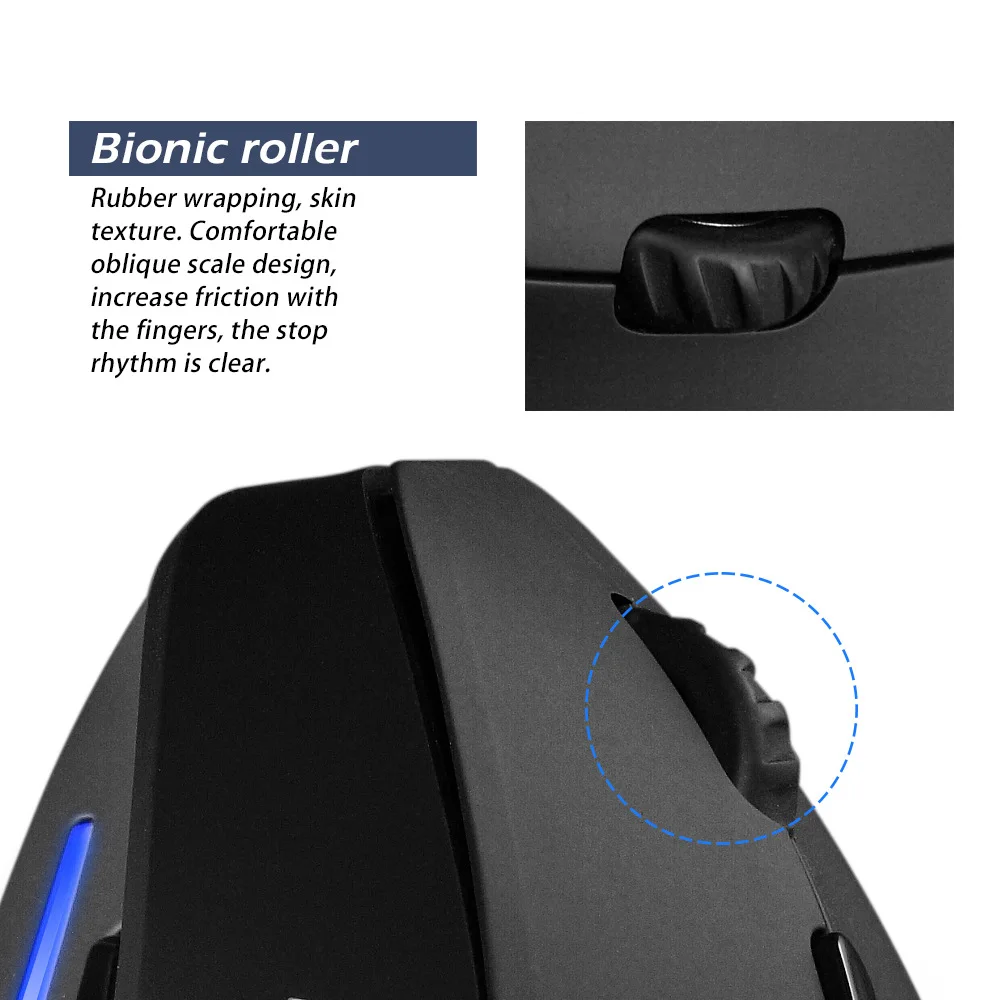
Wheel Durability |
1.2 million times |
Product Dimensions |
110*72*75mm |
Product Weight |
115 ± 5 g |
D-P-I |
1000 - 1600 - 2400 |
2.4 GHz Report Rate |
250 Hz |
BT Report Rate |
90 Hz |
【BT Mode】
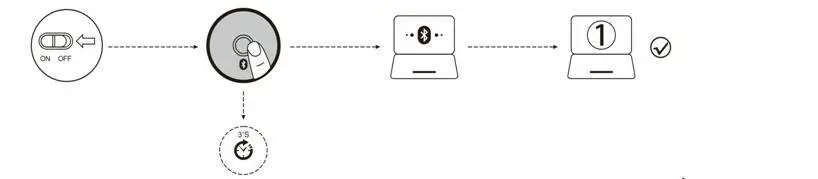
A. Pair Your First Device.
1. Turn on the power switch.
2. Press and hold the BT button for 3 seconds or more. The blue light flashes rapidly, and the mouse will enter
Discoverable mode for 2 minutes.
3. Compete BT pairing on your device:
Windows 7 and 8:
(1) Click Start, then select Control Panel > Add Devices.
(2) Select BT 3.0 Mouse or BT 5.0 Mouse in the list, then click Next.
Windows 10:
(1) Click Start, then select Settings > Device > BT.
(2) Select BT 3.0 Mouse or BT 5.0 Mouse in the list, then click Pair.
2. Press and hold the BT button for 3 seconds or more. The blue light flashes rapidly, and the mouse will enter
Discoverable mode for 2 minutes.
3. Compete BT pairing on your device:
Windows 7 and 8:
(1) Click Start, then select Control Panel > Add Devices.
(2) Select BT 3.0 Mouse or BT 5.0 Mouse in the list, then click Next.
Windows 10:
(1) Click Start, then select Settings > Device > BT.
(2) Select BT 3.0 Mouse or BT 5.0 Mouse in the list, then click Pair.
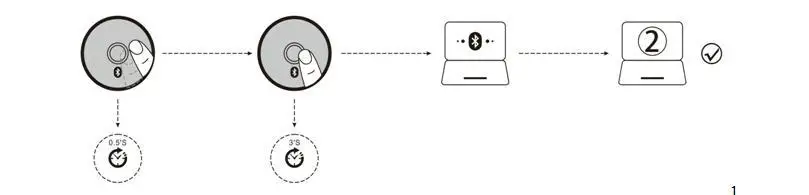
B. Pair Your Second Device.
1.Short press the BT button to switch channel.
2. Follow Steps 2 and 3 in “Pair Your First Device” to complete pairing.
3. Switch between devices.
Short press the BT button to switch between up to 3 paired devices (Up to 2 devices via BT and 1 device via the 2.4 GHz receiver).
2. Follow Steps 2 and 3 in “Pair Your First Device” to complete pairing.
3. Switch between devices.
Short press the BT button to switch between up to 3 paired devices (Up to 2 devices via BT and 1 device via the 2.4 GHz receiver).
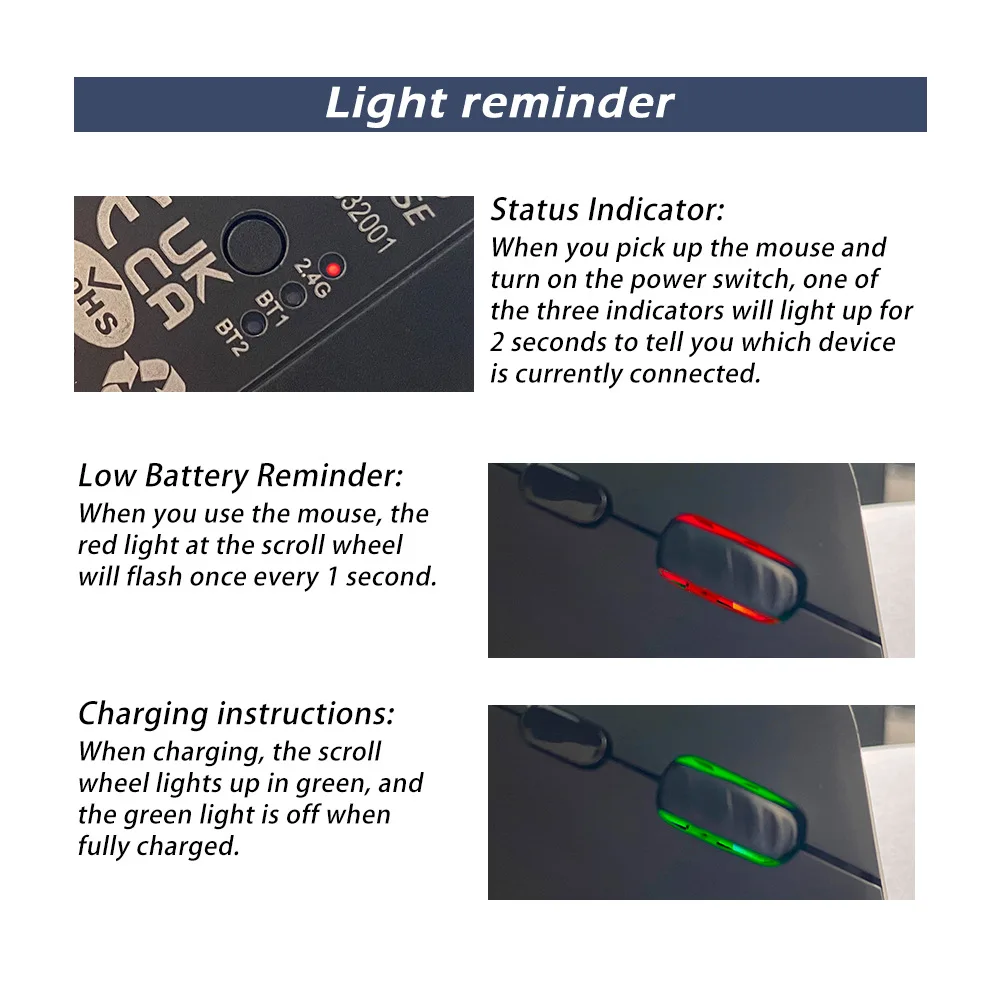
Status Indicator
When you pick up the mouse and turn on the power switch, one of the three indicators will light up for 2 seconds to tell you which device is currently connected.
Low Battery Reminder:
When you use the mouse, the red light at the scroll wheel will flash once every 1 second.
Charging instructions:
When charging, the scroll wheel lights up in green, and the green light is off when fully charged.
What If the Mouse Does Not Respond?
1.Please charge the mouse with USB cable.
2.Please try to replace the receiver with an USB interface.
3.Make sure the power switch on the bottom of the mouse is “on”or atposition.
4.Try to restart the computer.
5.Press the left、middle、right key when the power is on, and put the receiver into the computer, waiting for 5 seconds, and then you could rematch code successfully. (The mouse and the receiver should be within 30 cm during code matching)
When you pick up the mouse and turn on the power switch, one of the three indicators will light up for 2 seconds to tell you which device is currently connected.
Low Battery Reminder:
When you use the mouse, the red light at the scroll wheel will flash once every 1 second.
Charging instructions:
When charging, the scroll wheel lights up in green, and the green light is off when fully charged.
What If the Mouse Does Not Respond?
1.Please charge the mouse with USB cable.
2.Please try to replace the receiver with an USB interface.
3.Make sure the power switch on the bottom of the mouse is “on”or atposition.
4.Try to restart the computer.
5.Press the left、middle、right key when the power is on, and put the receiver into the computer, waiting for 5 seconds, and then you could rematch code successfully. (The mouse and the receiver should be within 30 cm during code matching)
Packing & Delivery
Liquid error (sections/custom-liquid line 1): Could not find asset snippets/judgeme_widgets.liquid